Auto Apply Support
Which job boards and platforms does Bulk Apply support?
Currently, Bulk Apply automates applications on Dice, LinkedIn, and ZipRecruiter. The platform also aggregates job postings from Indeed, Monster, Bebee, InsightGlobal, Jobomas, Jora, Randstad USA, Talent, and Judge.
Can I apply to jobs worldwide using Bulk Apply?
While Bulk Apply can be accessed globally, it currently supports job searches and applications in the USA and Canada. We are working to expand our services to other countries soon.
How many jobs can I apply to at once?
With the Basic Plan, single users can apply to up to 30 jobs per day. The Unlimited Plan and all Enterprise Plans allow for unlimited job applications per day.
Can I customize my applications for different job roles?
Yes, Bulk Apply allows you to search for unlimited job titles. The applications are tailored based on the ATS (Applicant Tracking System) score settings and other parameters defined in your profile.
Does Bulk Apply optimize my resume and cover letter?
Bulk Apply does not modify your resume(s). However, our platform offers a “Resume Score” feature that provides detailed feedback to help you meet industry standards and improve your chances of landing jobs.
Can I track my job applications through the platform?
Yes, after logging in, click on Jobs Applied to check the status of your applications. Each job applied will display a shortcut redirecting to the job posting details on the portal.
Does Bulk Apply autofill job applications on employer websites?
Bulk Apply submits applications for eligible job postings directly through automated portals using the Easy Apply feature, ensuring that users are not redirected to external websites.
Can I use different resumes for different job applications?
Each subscription covers a single profile (resume). If you wish to use different resumes, you would need to subscribe to additional plans. Please check our pricing plans for more details.
My updated Resume or any further changes after the profile setup is completed
Follow the below steps to upload a new resume
- Click on Profile Setup in the Left side panel
- Select the Profile Name
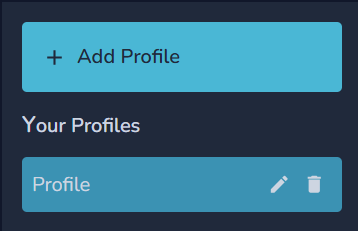
- Make the required changes as per your requirements in the below given tabs

- Basic Details - Phone Number, Email ID, Work Authorization and updated Resume
- Job Settings - Add / Delete Job Titles, Edit - Job Type, Job Location, Job Experience and ATS Score.
- Conneciton Settings - Disconnect or reconnect to the Job Portals.
- Search URL’s - Add required additional URL’s
- Scheduler - Make necessary changes in the Scehduler (Days or Times)
What are Search URL’s ?
Apart from the Job Search Criteria in Profile Setup, we can add further additional searches by following the below steps
- Open a new tab in Chrome Browser.
- Login to the Job portal (Linkedin, Dice or Ziprecruiter) with your credentials.
- Search Jobs with required Job Title(s).
- Use filters as per requirements and options avaialabe in the portal and apply the filters.
- Copy the final url of the browser (located on the top in address bar)
- Visit the Bulk Apply Portal and click on URLs of the respective portal
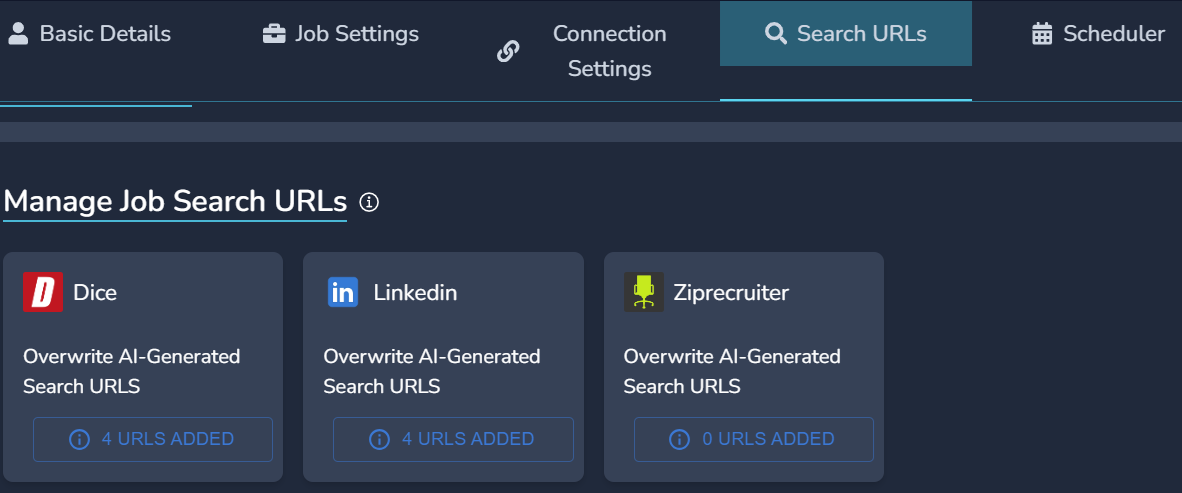
- Paste the URL in the avaialable URL Slots and click on save
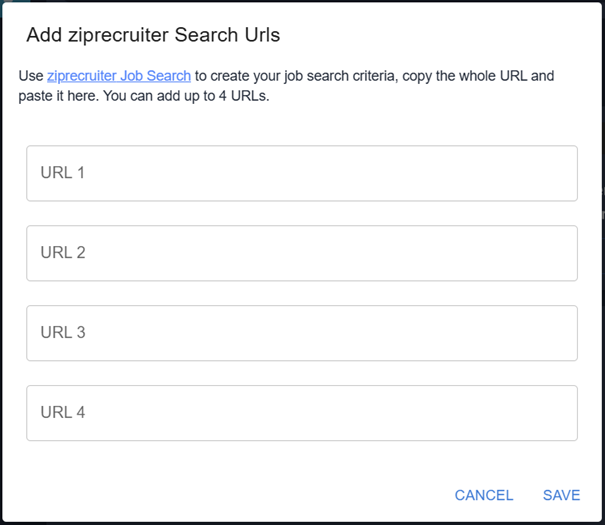
- Repeat the above steps in respective portals as required or till the URL Slots are available.
⚠️
Important Reminder: Ensure that the URLs for the respective portals are correctly copied and pasted into the appropriate sections of the tool; otherwise, the URL searches will not function properly.