Enterprise Users & Additional Features
What are the options for upgrading and downgrading plans?
How can I set up and manage multiple profiles in Enterprise Login
Whenever we need to add a new consultant, we first open the Chrome browser and click on “Add User” to create a new Chrome profile. Then, we log in using the candidate’s credentials (email ID) and open new tabs to sign into the necessary portals—LinkedIn and ZipRecruiter. After that, we log into BulkApply and set up the profile with the desired job titles. This setup is a one-time process.
Once completed, you can access the Chrome browser from any device to monitor progress. After setup, all browsers can be closed, and even the system can be shut down, as BulkApply will handle the job search and application process automatically.
If the profile gets disconnected, simply reopen the candidate’s Chrome profile, log into the required portals in adjacent tabs, and click “Connect” to reestablish the connection.
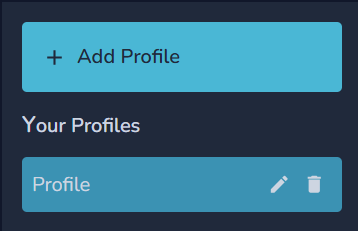
How do I Add or Delete a Profile
To Add a profile follow the steps mentioned in Profile Setup
To Delete a profile, click on Profile Setup located in the left panel. Select the desired profile and click on Delete Icon against the profile.